
Free Webinar Countdown Screen
Does your organization run webinars? Would you like to have a screen to display during lunch and breaks that counts down to the next event?
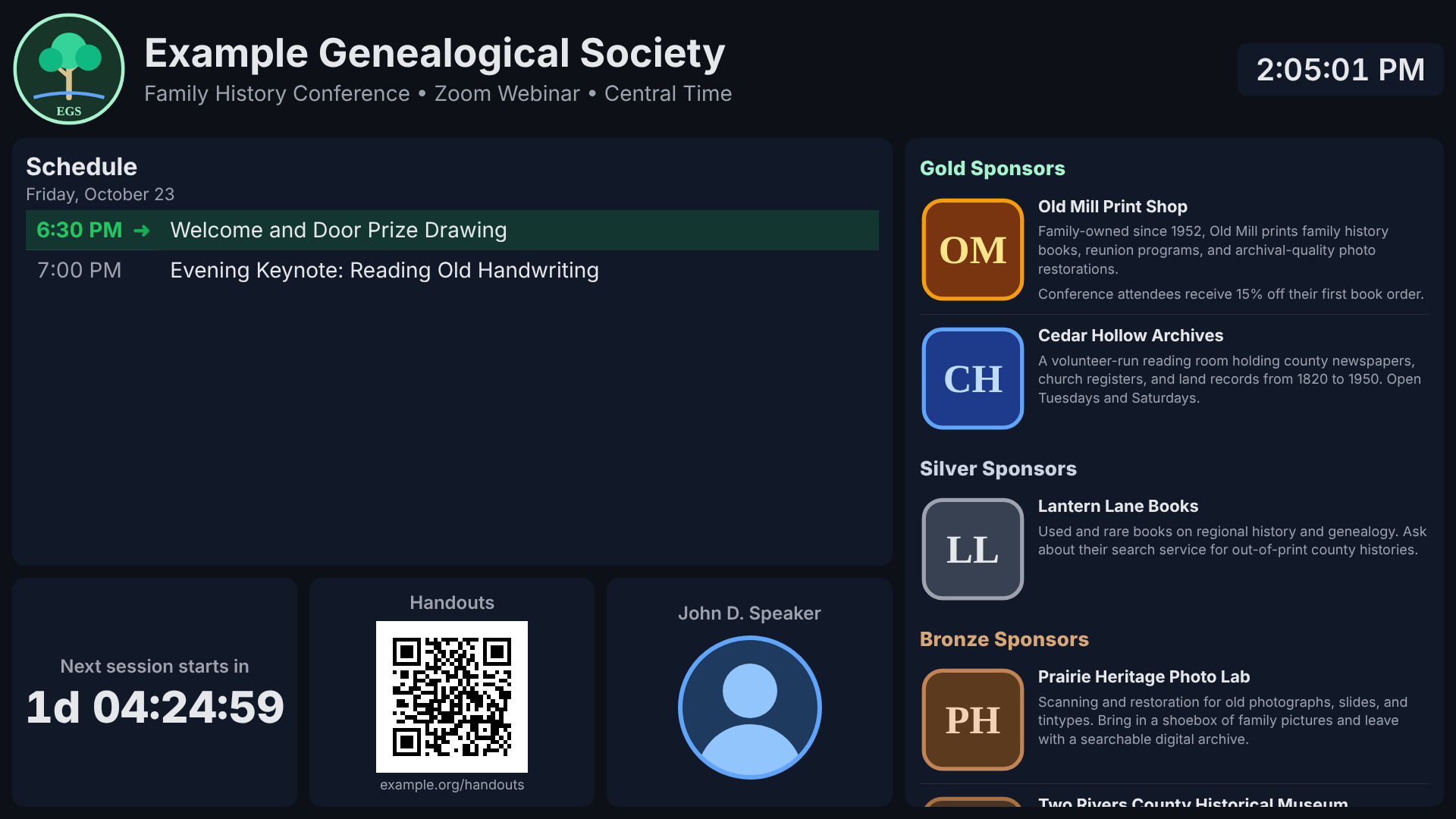
Download a free between-sessions screen for Zoom conferences and webinars. It shows your schedule, counts down to the next session, and optionally thanks your sponsors while attendees wait.
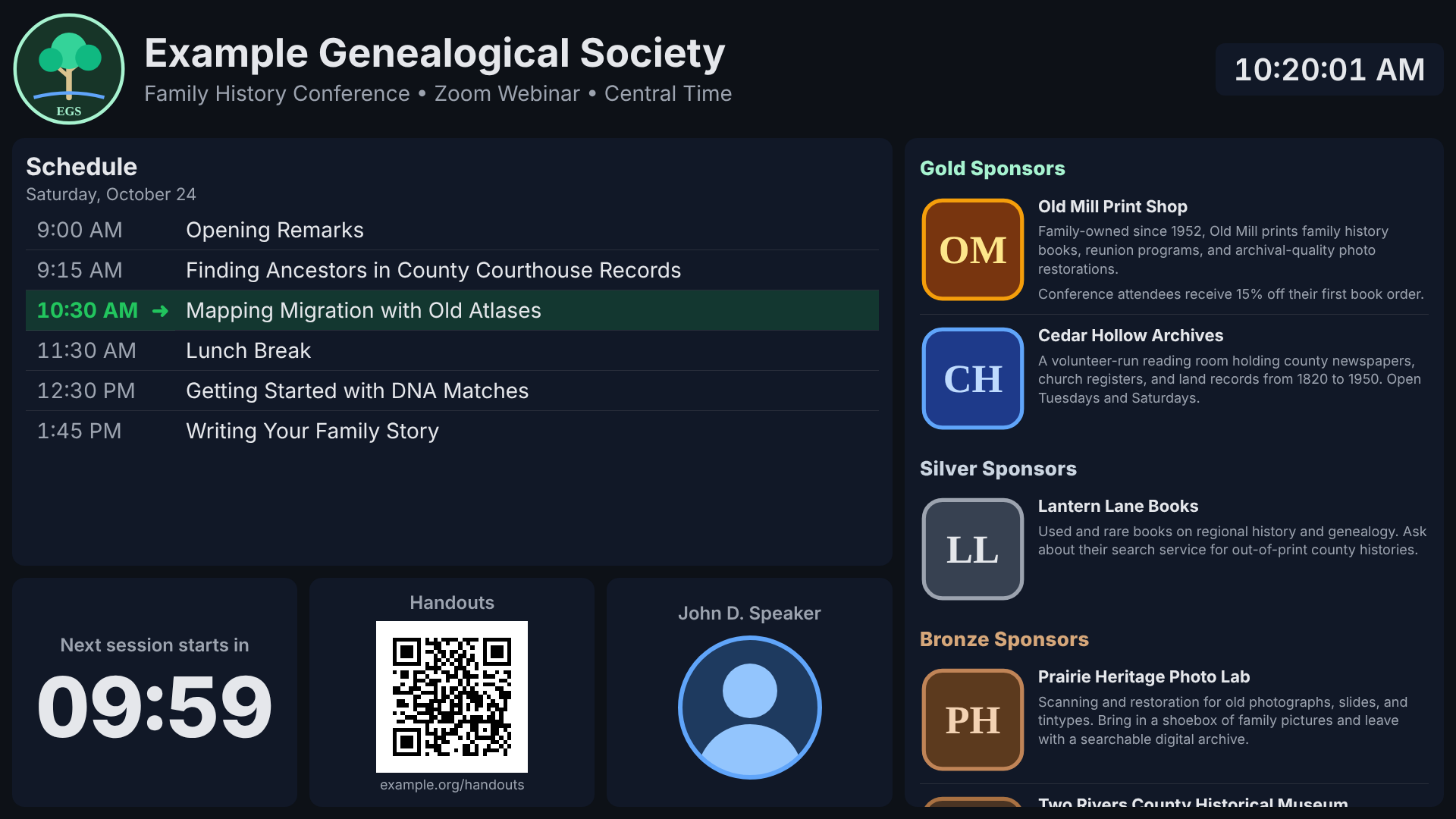
Click the above screenshot to see it in action.
Breaks are when attendees wander off, wonder whether they missed something, or join late and don’t know what’s next. Webinar Countdown answers those questions on one screen: what’s next, when it starts, and how to get the handouts. It also gives your sponsors and supporters the recognition they deserve.
Originally built for the Arkansas Genealogical Society’s fall conference, it’s now available for any organization to use free of charge.
What attendees see
- Today’s schedule, with the next session highlighted and marked with an arrow.
- A large countdown to the next session. Before the event, it counts the days, so you can share it while people arrive early.
- Your logo, event title, and the current time in the event’s time zone, so attendees in other time zones know what “10:30” means.
- Information blocks for anything you want attendees to have: a handouts link, a speaker photo, a door-prize reminder.
- QR codes made for you. Type a web address and check one box; attendees scan the code from their own screen.
- A scrolling list of sponsors, supporters, memorials, or announcements, each with an optional logo or photo.
- Friendly messages: “Starting now” as each session begins, and a thank-you message after the last one.
Set it up with a form, not code
There’s no programming involved. Open the setup screen and fill in your event: title, logo, schedule, sponsors, and so on. A live preview shows exactly how the screen will look, and a “Pretend it is…” control lets you check any moment of your event ahead of time.
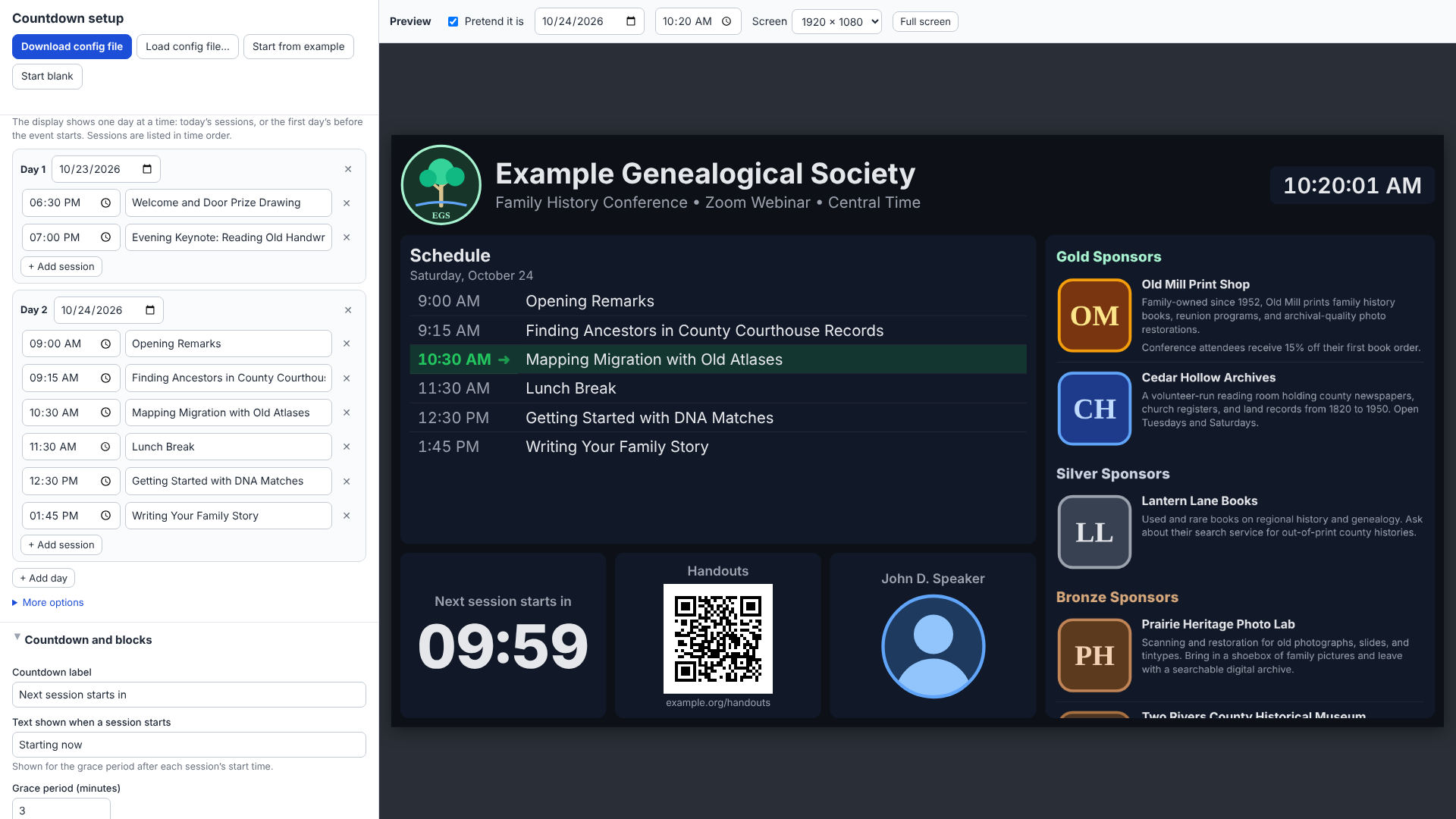
- Pictures from your computer or the web. Choose an image file, and it’s automatically resized and saved with your settings, or paste a web address.
- Sensible defaults. You can adjust colors, fonts, sizes, and scroll speed, but you don’t have to.
- Fits any screen. Text automatically shrinks if needed, so nothing is cut off on a smaller monitor.
- Your work is safe. The form saves a draft in your browser as you type.
Built for the day of the event
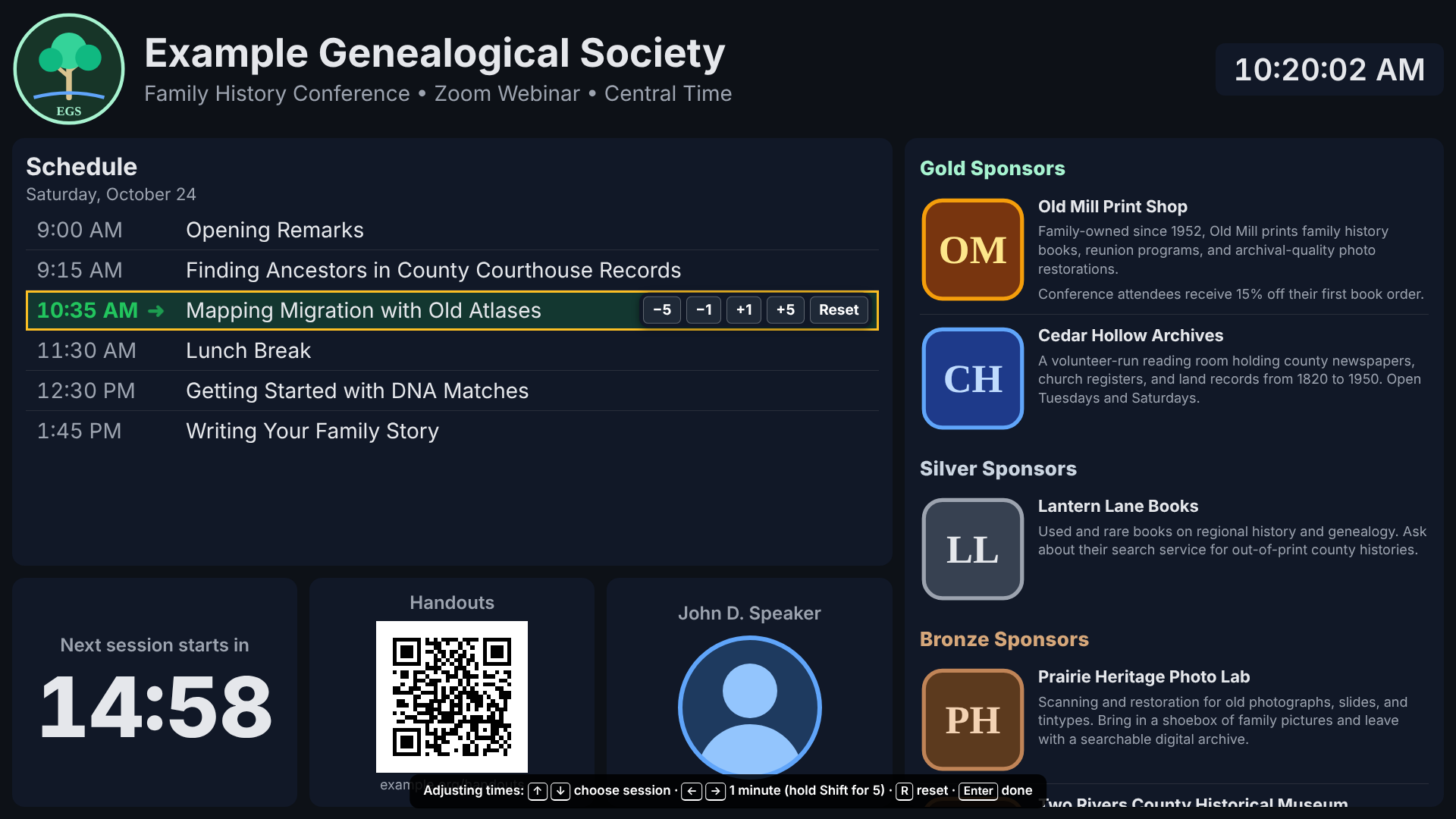
Presenters run long. When the next session needs to move, press T on the countdown screen (or click the session’s time) and use the arrow keys or on-screen buttons to move it a minute or five. The countdown updates right away. Your saved settings aren’t changed, and the adjustment applies only to that day.
- Press ? at any time to see all the keyboard shortcuts.
- Press F or double-click for full screen.
- Double-click the clock to open the setup screen in a separate window, so a quick fix doesn’t interrupt what attendees see.
What you need
- A computer with a current web browser. Chrome or Edge is recommended.
- Zoom or any other meeting program that can share a window. It also works on a TV or projector at an in-person event.
- A website you can upload two files to, or just the computer running the screen. The countdown also works when opened directly from a computer’s files.
Webinar Countdown is a single file. Your settings are saved in a second small file that you keep beside it. Nothing is sent to anyone else’s server, and you don’t need to create an account.
Getting started
- Download Webinar Countdown using the form below.
- Open the file in your browser. The setup screen appears with an example event already filled in.
- Replace the example with your own event and click Download config file.
- Put the downloaded settings file in the same folder as the countdown file, on your website or on your computer.
- On event day, open the countdown and share that browser window in Zoom.
Features
The display
- Four-region layout: a full-width header; the schedule at upper left; a row of blocks below it; and a scrolling list on the right.
- Everything comes from the config: no names, labels, or images are built into the page. Any label left blank is hidden.
- Flexible header: images, title and subtitle, clock, and spacers in any order, left to right. A spacer pushes the items after it to the right. An empty header is hidden.
- Logos of any shape: you set the height, and the width follows the image’s own proportions.
- 12-hour clock: the current time in the event’s time zone, with optional seconds.
- One day’s schedule at a time:
- Before the event, it shows the first day.
- During the event, it shows today’s sessions, and each day’s schedule stays up until midnight.
- On a gap day it shows the next day; after the event it shows the last day.
- Next-session highlight: the upcoming session is highlighted, with a bouncing arrow.
- Optional schedule heading and date line: for example, “Schedule” and “Saturday, October 24.”
- Countdown with days: counts to the next session, adding days when needed, for example “1d 04:24:59”. It counts straight through to the next day’s first session.
- “Starting” message: for a set grace period after each session starts, it shows text such as “Starting now,” with that session still highlighted.
- End message: after the final session, for example “Thank you for attending!”
- Information blocks: any number of blocks beside the countdown, each a centered title above an image. The blocks share the row equally.
- QR codes: any image can instead be a QR code made from a web address. Codes are always black on white, with an optional printed address underneath, and are generated by the page itself.
- Scrolling list:
- Headings, each in its own color or a default color.
- Cards with an optional image on the left and a title and text on the right. A blank line starts a new paragraph.
- It scrolls in a smooth continuous loop only when it’s taller than the screen, at the same speed on any monitor.
- Full width when unused: if the scrolling list is empty, the schedule side takes the whole width.
- Shrink to fit: font sizes are treated as maximums, and text shrinks to fit when needed. A long countdown shrinks on its own without shrinking the schedule.
- Adjustable look: background, panel, text, secondary-text, and highlight colors; font; and the width split between the left and right sides.
- Time zones done right: the schedule, clock, and countdown always use the event’s time zone, wherever the presenting computer is.
Event-day controls
- Full screen: press F, or double-click anywhere except the clock and schedule times.
- Open setup without interrupting: double-click the clock, or press S, to open setup in a separate window while the countdown keeps running.
- Adjust start times:
- Press T, or click a session’s time, to start adjusting.
- ↑ ↓ choose a session, and ← → move it 1 minute; holding Shift makes it 5.
- On-screen −5, −1, +1, +5, and Reset buttons do the same with the mouse.
- On-screen instructions: a bar at the bottom lists the keys while you’re adjusting.
- Adjustment rules:
- Only the chosen session moves, and the display shows just the new time.
- The schedule reorders if a session passes another.
- Finishing an adjustment: press Enter, T, or Esc, click elsewhere, or wait 20 seconds without a key press.
- Adjustments are temporary and safe:
- They’re kept in that browser, so they survive a reload.
- They apply to that day only and are cleared afterward.
- They never change the config file, and a rehearsal can’t erase them.
- Help card: press ? to see every shortcut.
- Controls hint: moving the mouse shows “Press ? for controls” for a few seconds.
- Rehearsal mode:
?time=2026-10-24T10:25pretends it’s that date and time. A time with no date uses the event’s first day, or today if today is an event day. - Alternate config file:
?config=other-file.jsuses a different settings file, for example for a second event.
The setup screen
- Opens automatically when no config file is found next to the page. Adding
?setupto the address opens it at any time, filled in from the current config. - Live preview: shows the display exactly as it will look, updated as you type.
- “Pretend it is…” picker: previews any date and time of the event.
- Screen-size picker: previews at 1920 × 1080, 1600 × 900, 1366 × 768, or 1280 × 720.
- Full-screen preview.
- Organized sections: Event basics, Header, Schedule, Countdown and blocks, and Scrolling list. Less-used settings sit in collapsed “More options” areas.
- Time zone picker: the common US time zones are listed first.
- List editing: add, delete, and move items up or down in the header, blocks, and scrolling list.
- Multi-day schedule editor:
- Add days and sessions.
- “+ Add session” puts the cursor in the time field.
- Sessions and days move into time or date order when you leave them, with a brief highlight.
- Deleting a day that has sessions asks for confirmation first.
- Images from the web or your computer: paste a web address, or choose a file. Chosen files are automatically resized and compressed and saved inside the config, which shows their size.
- Image thumbnails: with a warning if a web address can’t be loaded.
- QR options on every image: “Show as a QR code” and “Show the address under the code,” with a thumbnail large enough to scan with a phone.
- Automatic draft saving: work is saved in the browser as you type. If unsaved work from an earlier visit exists, the form offers to restore it.
- Status line: shows whether changes are saved as a draft, downloaded, or unchanged.
- Warnings:
- An unrecognized time zone.
- A schedule with no days.
- A day without a date, or two days with the same date.
- Sessions with no start time.
- Download config file: saves
countdown-config.js, with upload instructions. - Load config file: opens a config someone sent you.
- Start from example or Start blank: each asks for confirmation before replacing your work.
- Built-in “How this works” instructions.
- Example event: a complete sample event, Example Genealogical Society, so new users see how everything fits together.
Technical
- Just two files:
countdown.htmlandcountdown-config.js. No server software, account, or installation. - Runs from a website or from a computer’s files. The config file uses a format browsers will read in both cases.
- Always fresh: the page fetches a new copy of the config each time, so an upload shows up on the next reload.
- Private: nothing is sent to any server, and setup only downloads a file.
- Works offline, except for images added by web address.
- Built-in QR generator: a freely licensed (MIT) library, no outside service.
- Safe text handling: all text is shown as plain text, so nothing typed into the config can run as code.
- Readable config file: the downloaded file opens with a short explanatory comment.
Questions
Does it work with Microsoft Teams or Google Meet?
Yes. Anything that can share a browser window will work. It was designed and tested with Zoom webinars.
Does it need an internet connection?
The countdown itself doesn’t. Images that you embedded from your computer are saved with your settings. Images you added by web address, such as a sponsor’s logo on their website, need an internet connection to load. In a Zoom webinar you’ll be online anyway.
Our event is in a different time zone than some of our volunteers. Is that a problem?
No. You choose the event’s time zone in the setup form, and the schedule, clock, and countdown all use it, no matter where the presenting computer is.
Can more than one person edit the settings?
Yes. Anyone can open the setup screen, load the current settings file, make changes, and download a new copy. Only the copy you place next to the countdown file is used.
Download Webinar Countdown
It’s free. Tell us a little about your organization, and we’ll give you the download link.